
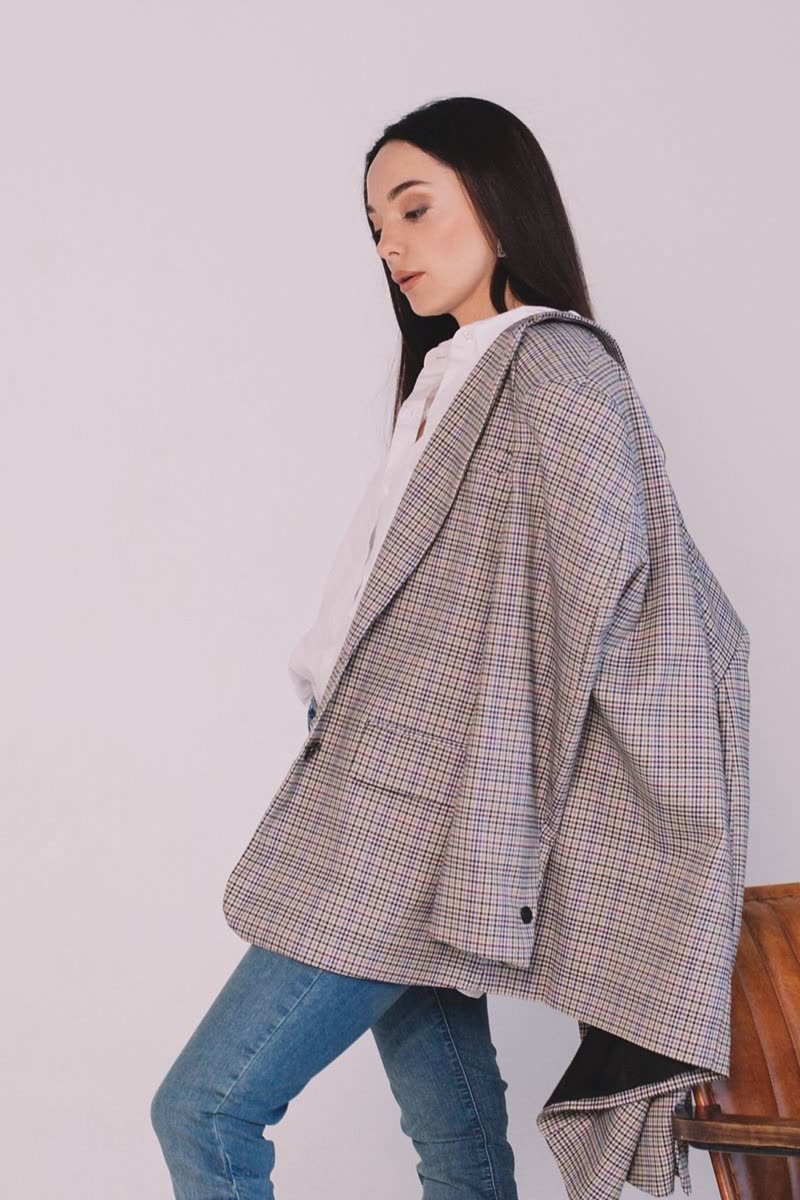
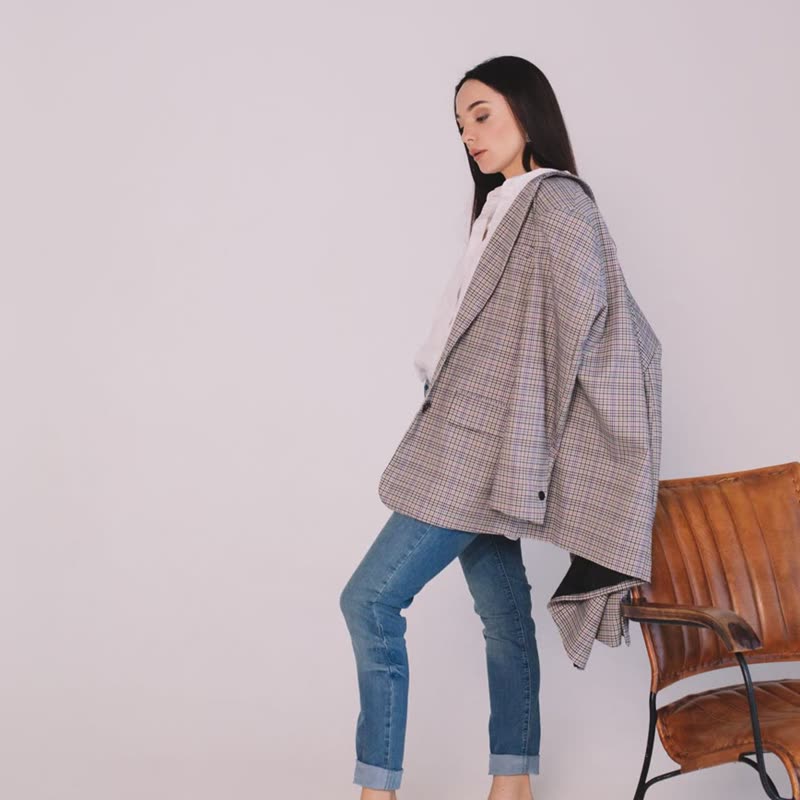
Cut for an easy fit, in cloth that holds its shape.
 Product Slider BlockFree downloadMenu
Showing the back of a jacket or the side of a chair helps someone decide without opening the page. Here is where the second picture comes from, and what to check before you turn it on. Free
Cut for an easy fit, in cloth that holds its shape.
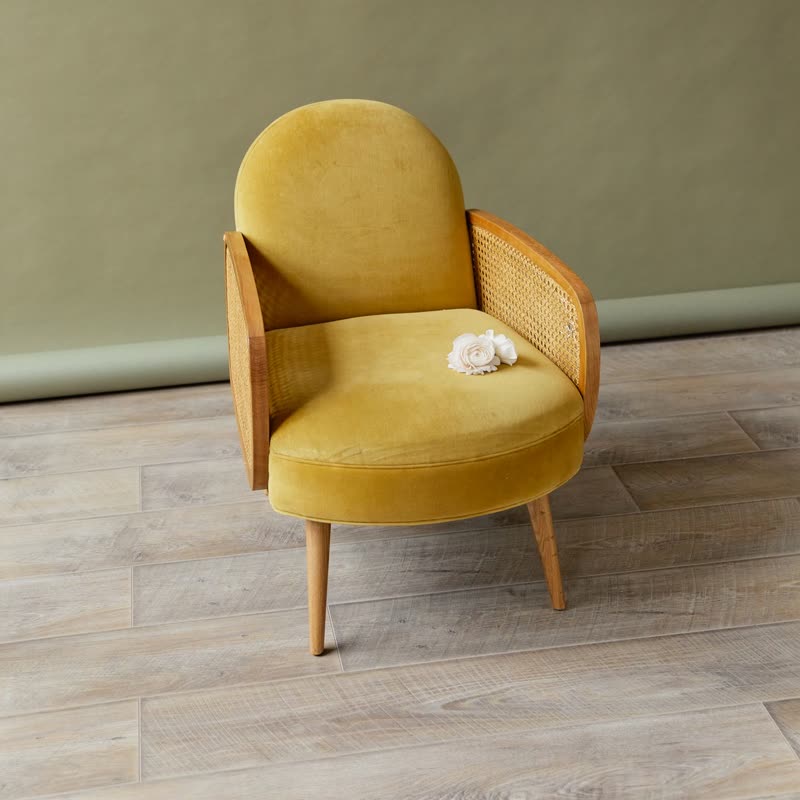
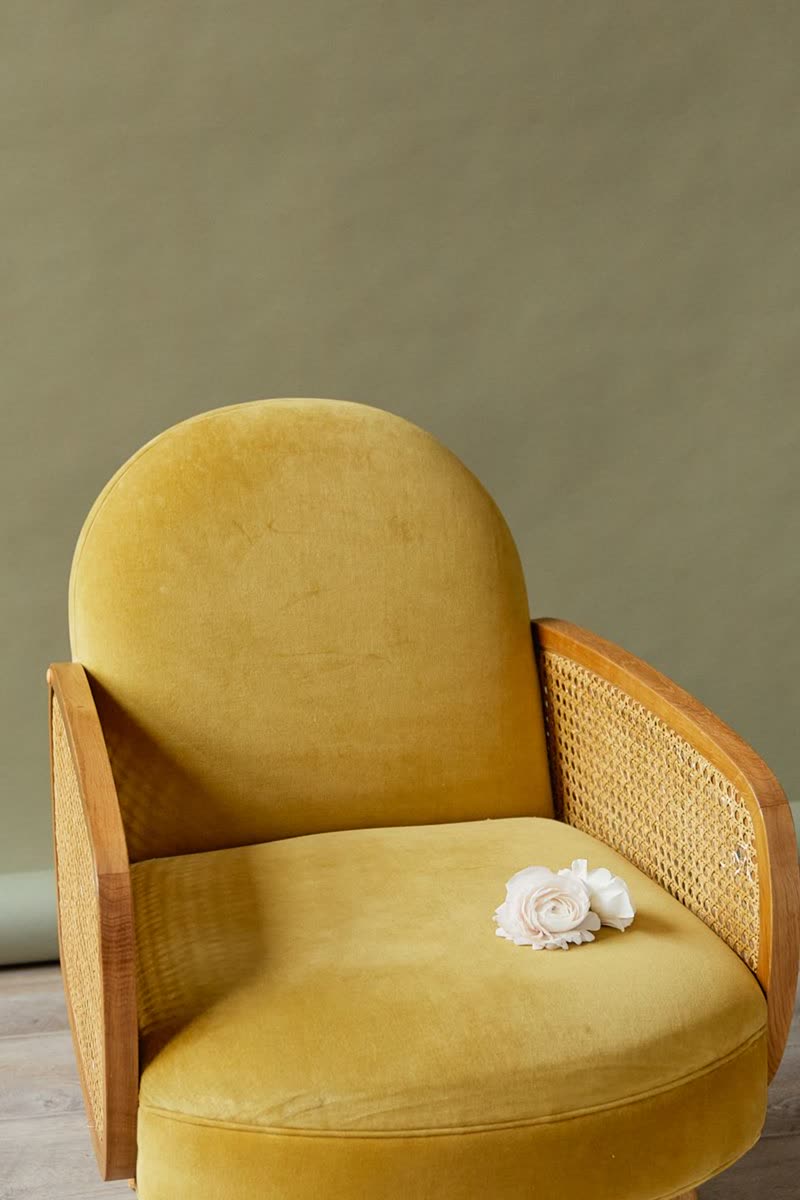
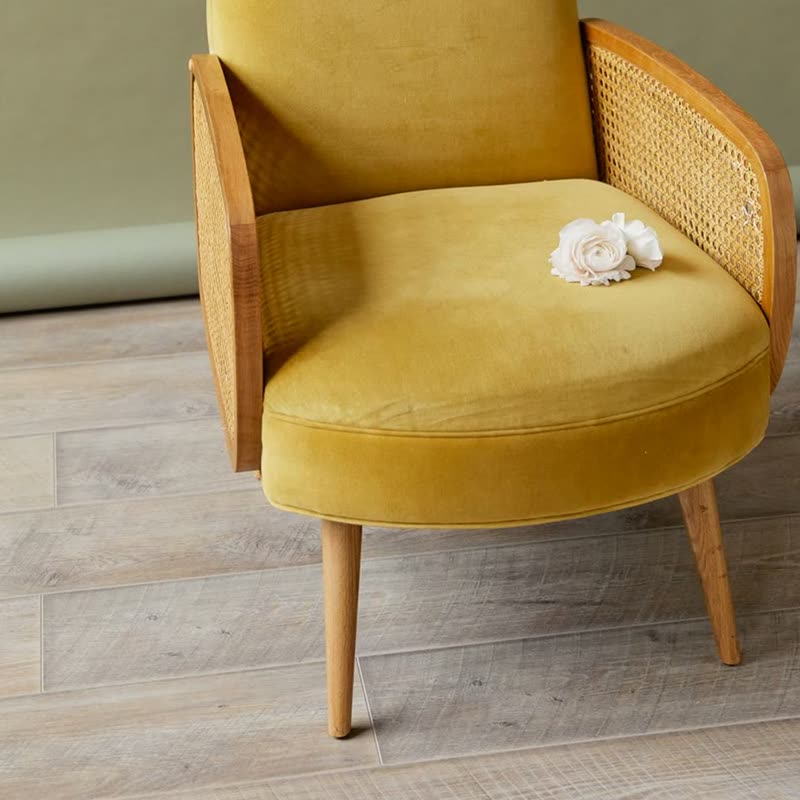
Solid frame, joined by hand. Delivered assembled.
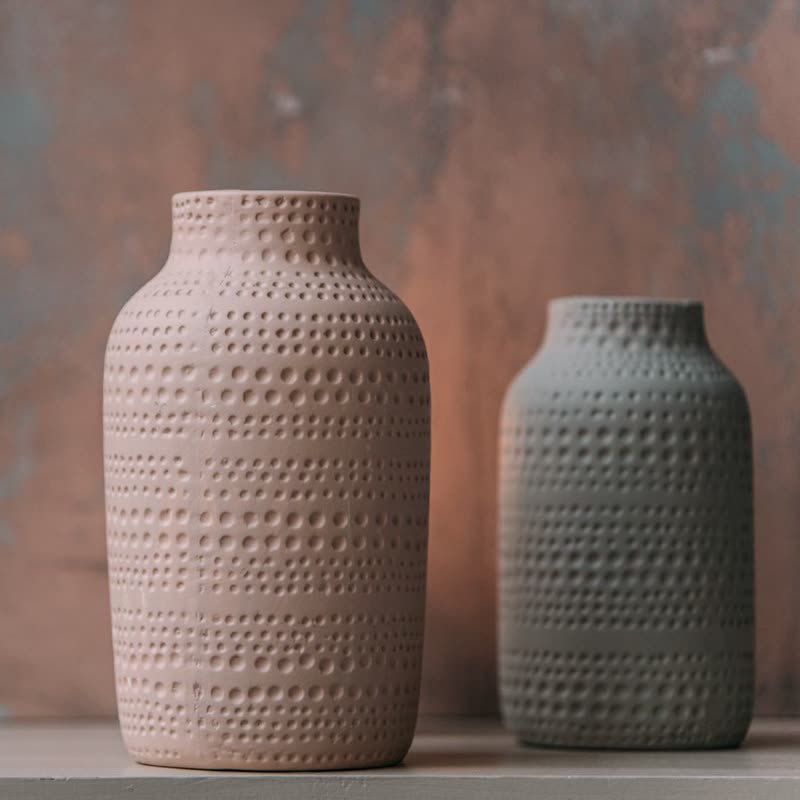
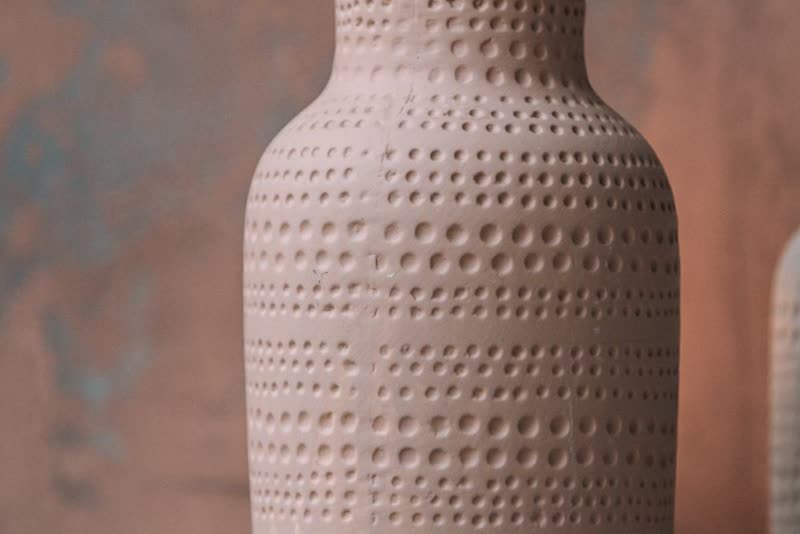
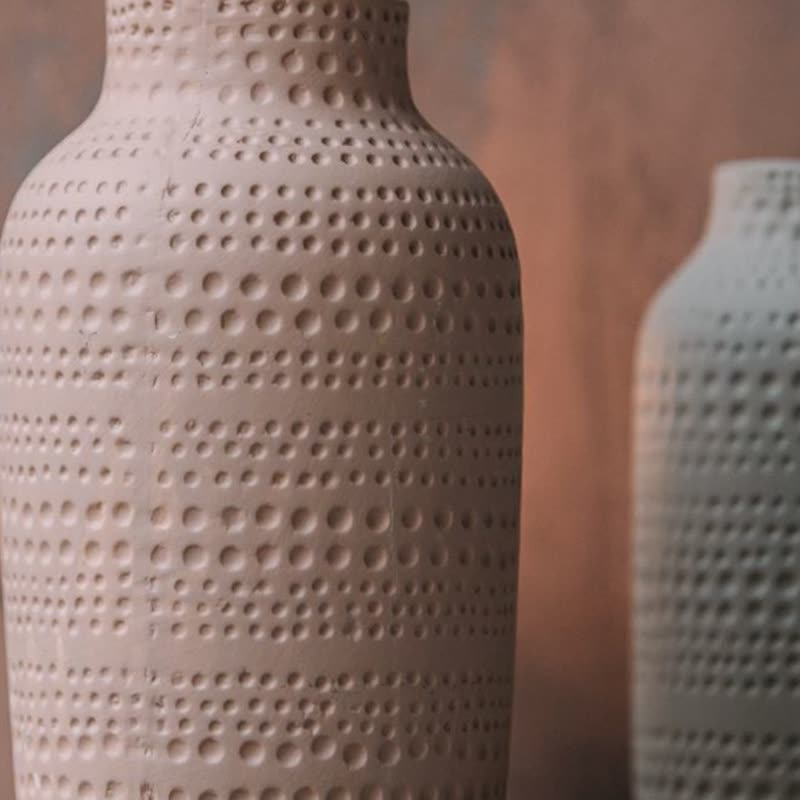
Thrown by hand, glazed and fired twice. No two come out quite the same.
Plenty of commercial themes have an image swap option in their shop settings. If yours does and you are happy with a simple fade or flip, use it. It is one less plugin, and the guide has the code for doing it by hand as well.
The change goes through a transition instead of a cut, and it rests on the second image until the pointer leaves. There is no timed cycling. With the Pro scrub setting, moving the pointer across the picture goes through the rest of the gallery. Colour swatches on the card preview a variation on hover and pick it on a click. Details can come in over the image. The same morph can be switched on for all product lists in the shop, and off again.
A second image only helps if it shows something new. On clothing it could be the back or a model wearing it; on furniture, the same piece in a room; on a watch, the case from the side. A close-up of the same angle tells a shopper little, and an image that is different in crop makes the swap look jumpy. Keep the product at the same size and in the same place across a gallery where possible, because the morph looks best that way.
Shop lists look calm when every image has the same shape. Square is the usual choice, and it is the safest for mixed products. Whichever you choose, check WooCommerce's catalog image crop in the Customizer so that the second image does not get a different crop from the first.
It cannot make up an image. A product with a single photo stays still. And there is no separate field for a hover image: it uses the gallery order, so changing the second image means dragging another image into second place in the product's gallery.
The first gallery image of the product, followed by the others in order.
No, only lists and cards. Use the Product Stage block for the product page.
Sample products throughout. Pro starts at $19 a year.
Get the free plugin