 Product Slider BlockFree downloadMenu
How to show variation images on the WooCommerce shop page
Core WooCommerce shows a variable product once in the shop, with its main image. To see other colours, a customer has to open the product. There are two ways round that, and they solve different problems.
Choose a colour on the card and the picture changes. Sample products.
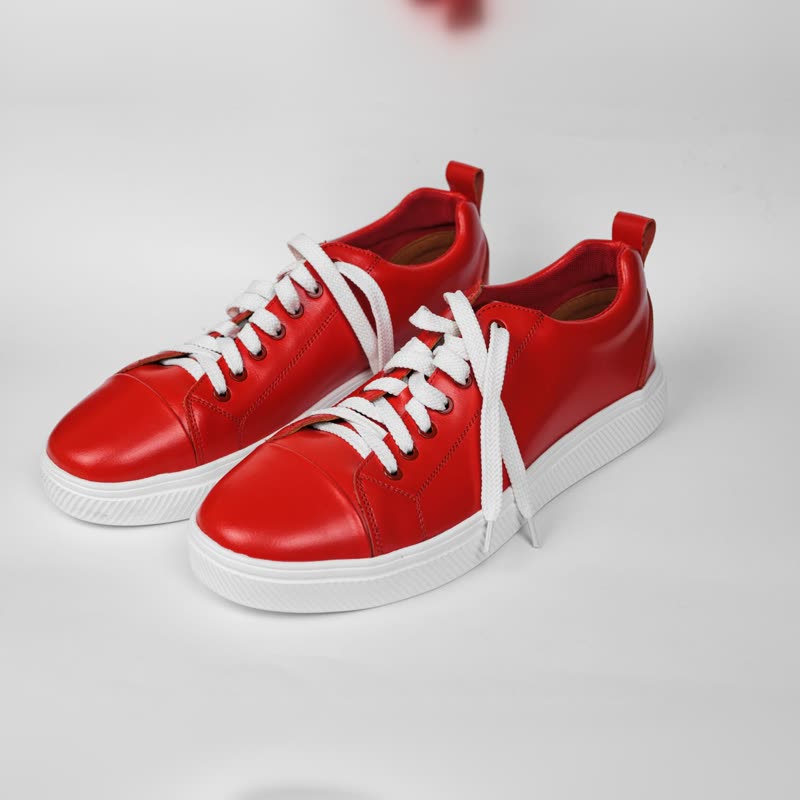
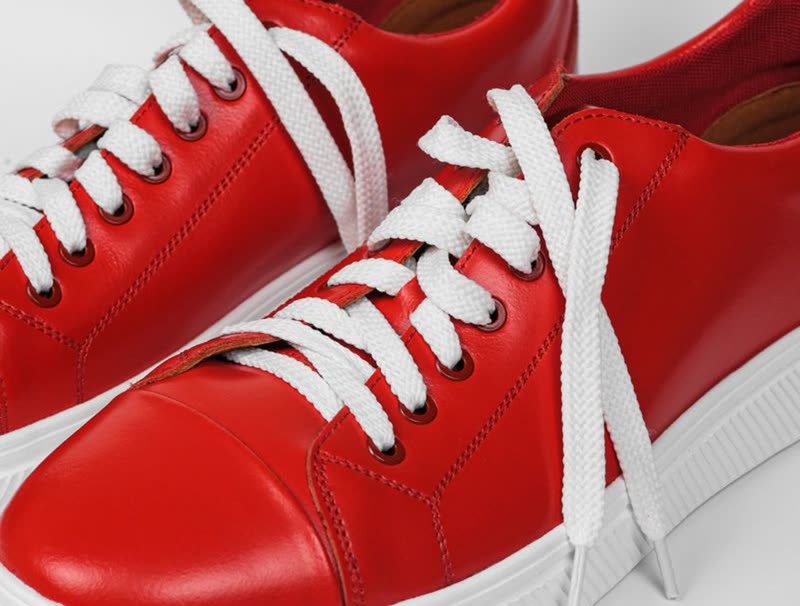
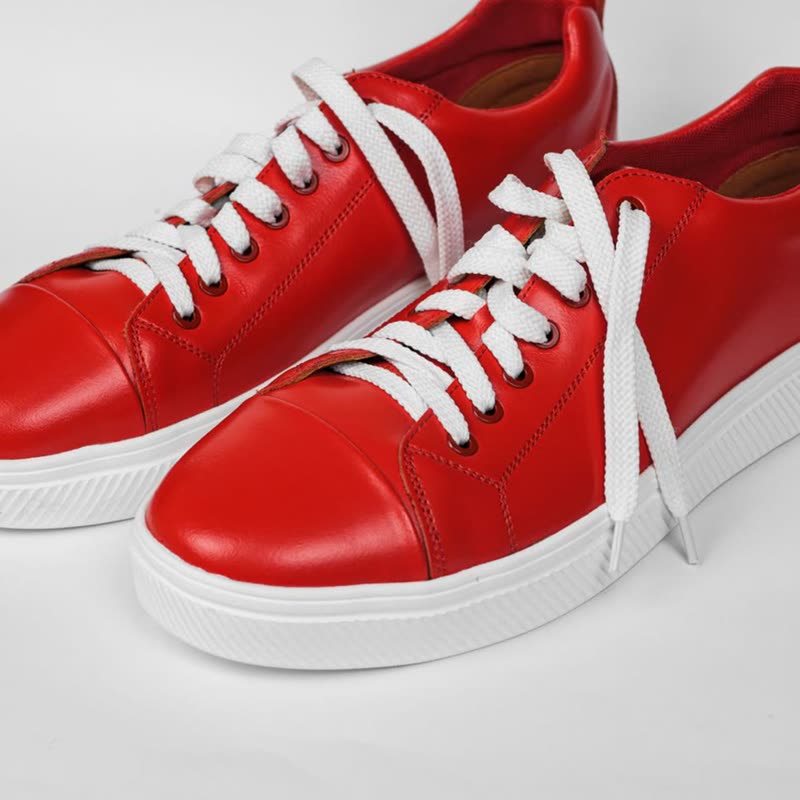
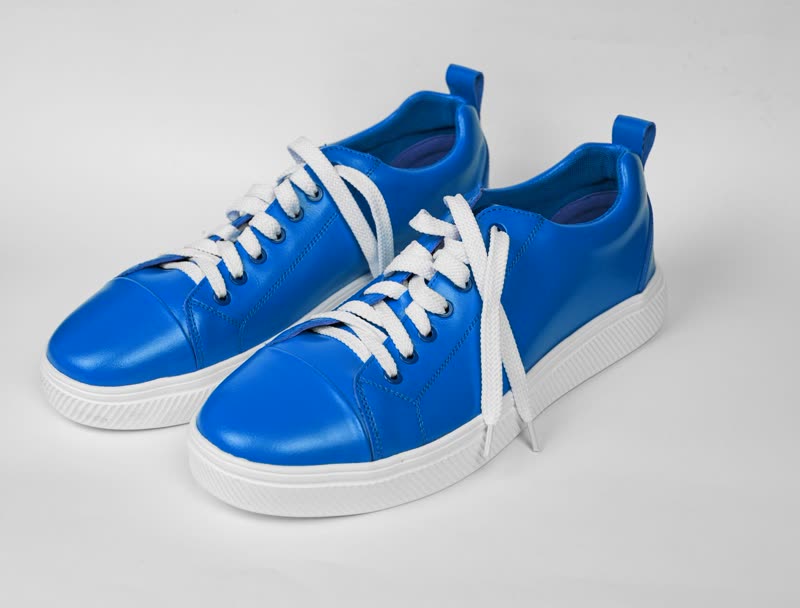
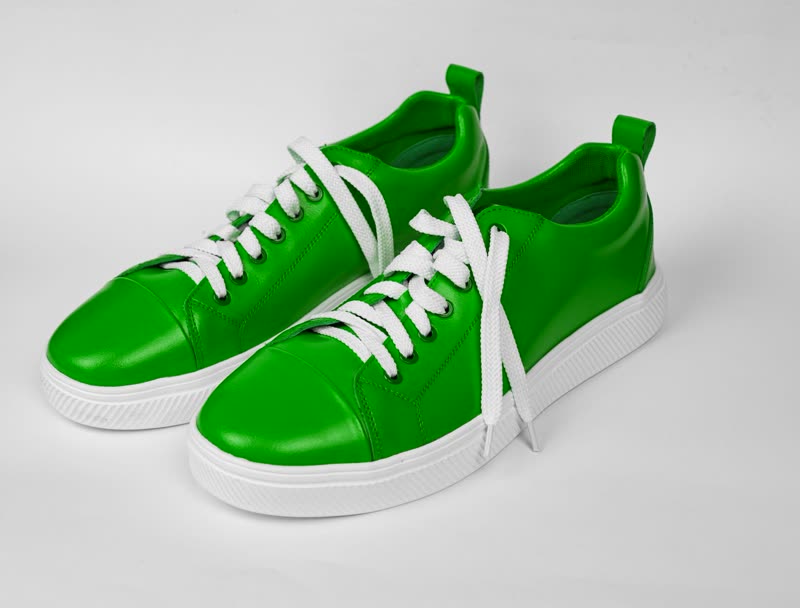
Soft leather upper, cushioned sole. Comes with a spare set of laces.
Red court low
€129No colour chosen
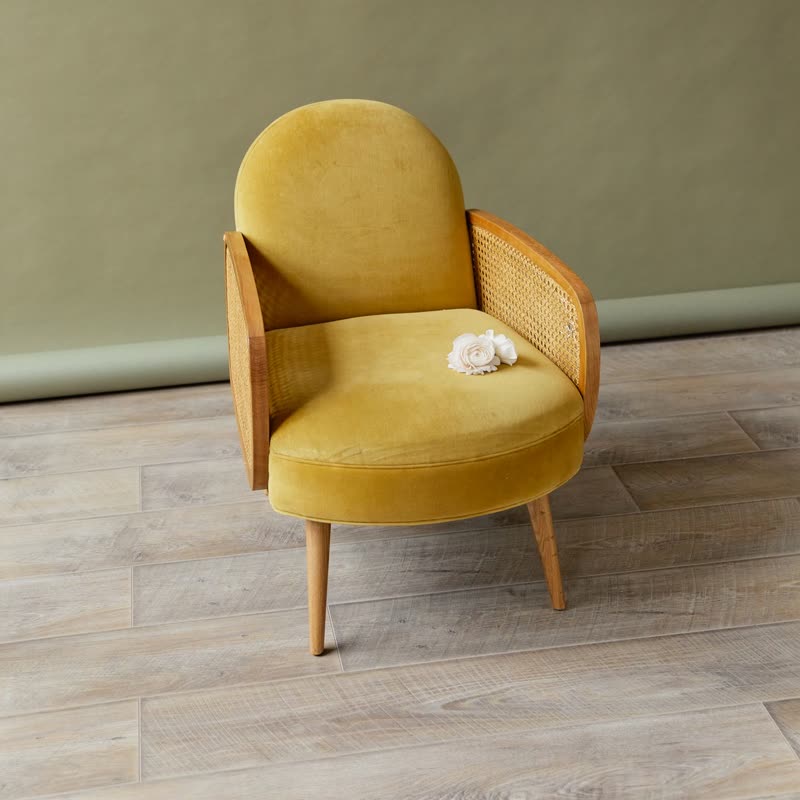
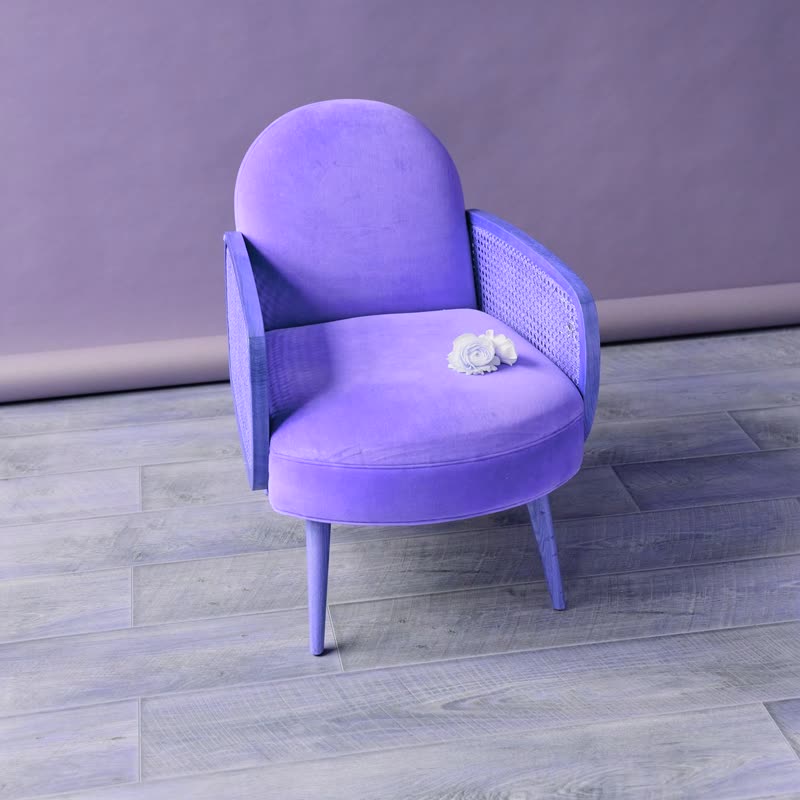
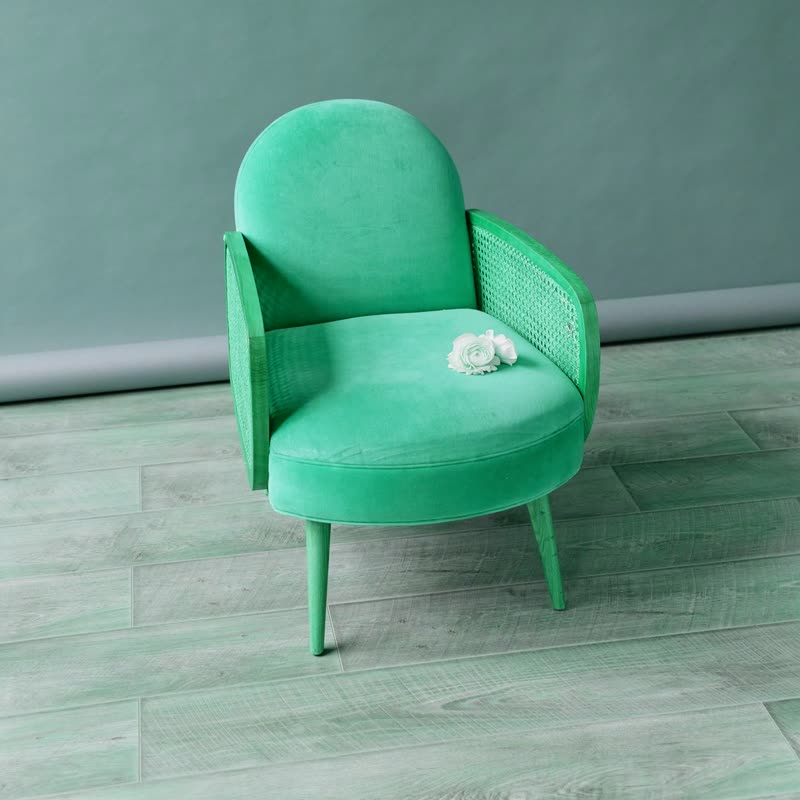
Solid frame, joined by hand. Delivered assembled.
Mustard cane armchair
€640No colour chosen
First, make sure variation images work at all
A very common search is "woocommerce variation image not changing". On a product page the main image changes when a variation with an image of its own is chosen. So open the variation under the product's Variations tab, and set an image on each one. If the picture still does not change, try a default theme: a custom gallery script in the theme or a plugin is the usual cause. Also, a variation form needs every attribute set to find a match, so a variation set to "any" on one attribute will not change the image until the customer has chosen the others.
Way one: list each variation as its own product
This is what "show variations as single products" means: a shop page where the red shirt and the blue shirt each have their own card. It helps when colour is the first thing people choose, as with paint or a sneaker colourway, and it makes the shop page look fuller. It also makes it longer, with near-duplicates, and for fifty colours it is awful. Dedicated plugins exist for this. Core does not do it.
Way two: swatches on the card
One card per product, with colour swatches on it, and the picture changes to the chosen colour. Swatch plugins do this, and our Morph Card does it too: hovering a swatch previews the colour with a shader morph, and clicking keeps it. Try the demo on that page. When comparing plugins, check two things: that shop-page swatches are in the free tier if you need that, because some keep them for paid, and whether they make one extra request per product to fetch variation data, which adds up on a long page.
A warning about variation data
Printing all variation images for every product on a category page gets heavy quickly. Keep the number of images per card small, lazy load the ones you are not showing, and test with your largest product. A product with hundreds of variations needs a different approach from one with four colours.
If you need more than one image per variation
Core gives each variation one image. "Additional variation images" plugins add a gallery per variation, which matters for clothing, where each colour needs front, back and detail. Decide this before you shoot, as it changes how many photos you need.