
 Product Slider BlockFree downloadMenu
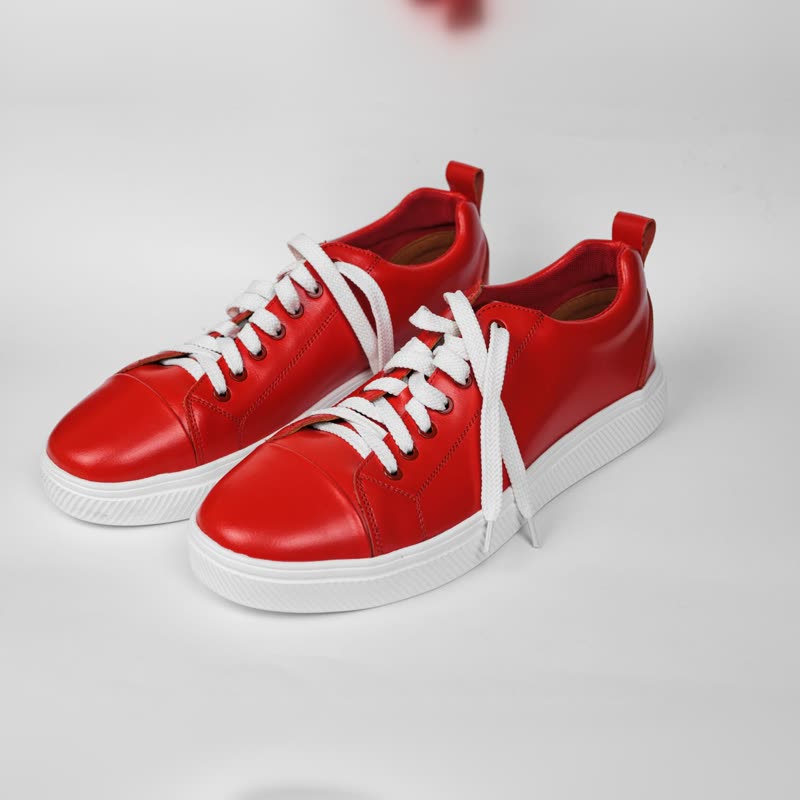
Point at a product below. The picture morphs to its second image, rests there, and morphs back when the pointer leaves. It never runs on by itself. It works in one Morph Card, or across every list in the shop with one switch. Free
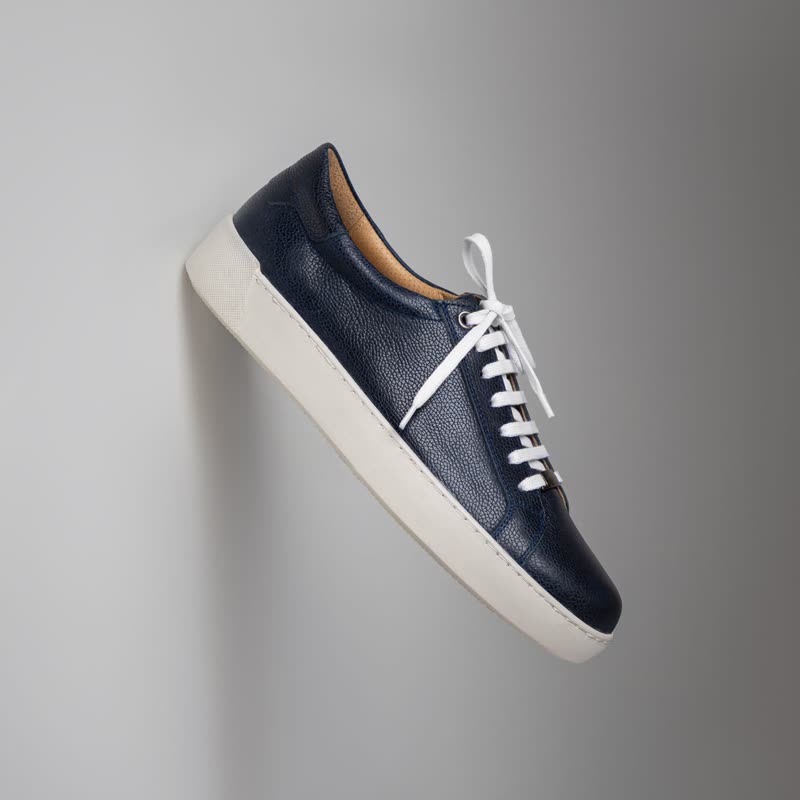





For one product, or a few, add a Morph Card block. For the whole shop, go to WooCommerce, Settings, Products, and turn on the switch for the changing image on all product lists. It is off until you turn it on. Turn it off again, and your theme's own output is back; nothing in your templates was changed.
A common image-swap plugin fades between two pictures with CSS, or flips them. This draws the change on a canvas. The default is the ripple transition, which runs one photo into the next like a ring on water. Ripple and zoom are free as well, and with Pro you can use the rest. Where the browser has neither WebGL 2 nor WebGPU, it falls back to a plain fade. Visitors who asked for reduced motion get that too.
The first image of the product's gallery, in the order you set in WooCommerce. Moving the pointer across the picture to go through more of them is a Pro setting called scrub; swatches and dots also reach the others. So the first thing to do is look at your galleries. If the second image in a gallery is a size chart, that's what your visitors will see. Put a picture of the product from another angle in second place.
With one image there is nothing to change to, and the card just stays still. This is fine and needs no setting. Should many of your products have only one photo, adding a second photo to your best sellers first will do more for you than any effect.
Nothing can be pointed at on a phone. A morph card moves through its images by dragging, and it has dots to show where you are. A tap goes to the product, as usual.
No. The switch works with the product lists your shop already has, and the block works in any theme that supports blocks.
Yes: the block, the shop-wide switch, and the distance, ripple, zoom and fade transitions.
Sample products throughout. Pro starts at $19 a year.
Get the free plugin