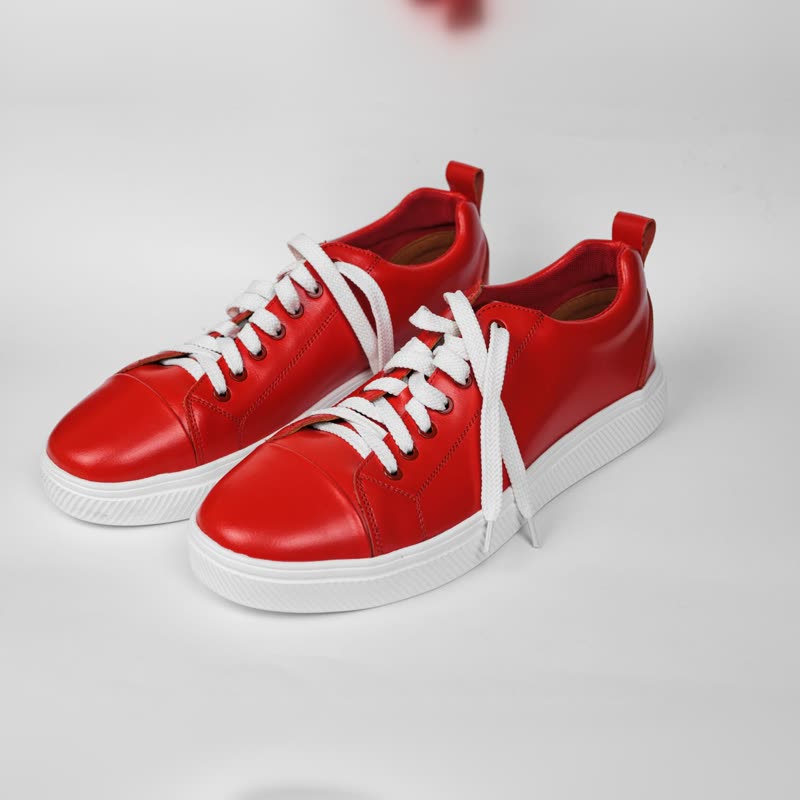
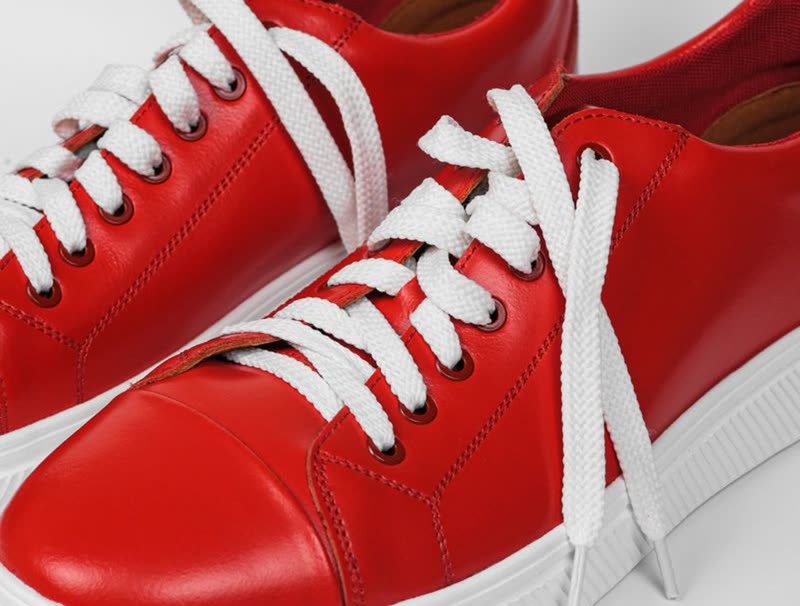
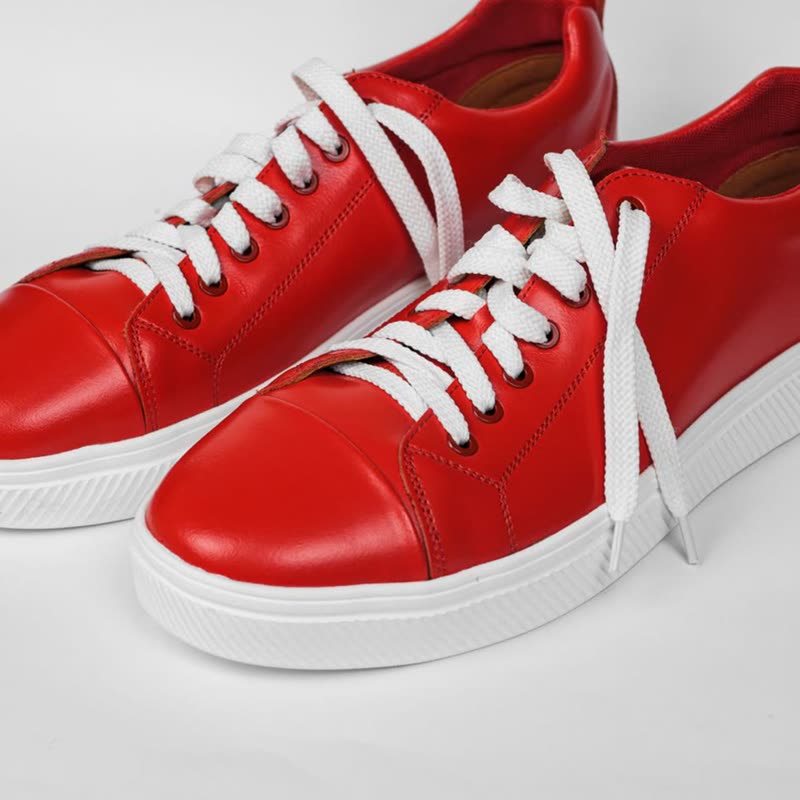
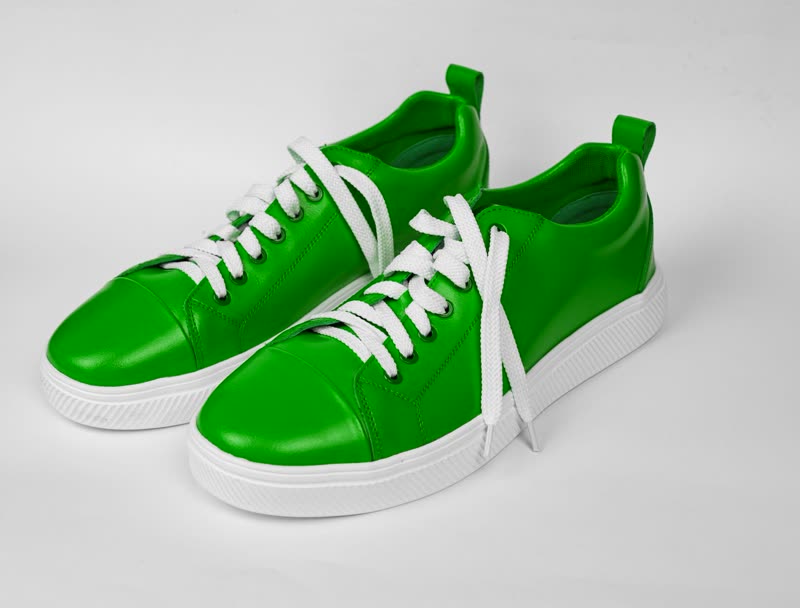
Soft leather upper, cushioned sole. Comes with a spare set of laces.
Red court low
€129No colour chosen
 Product Slider BlockFree downloadMenu
Hover a swatch above and the picture changes to that colour. Click and it stays picked. A shopper sees the colours they care about without opening each product page. Free
Soft leather upper, cushioned sole. Comes with a spare set of laces.
No colour chosen
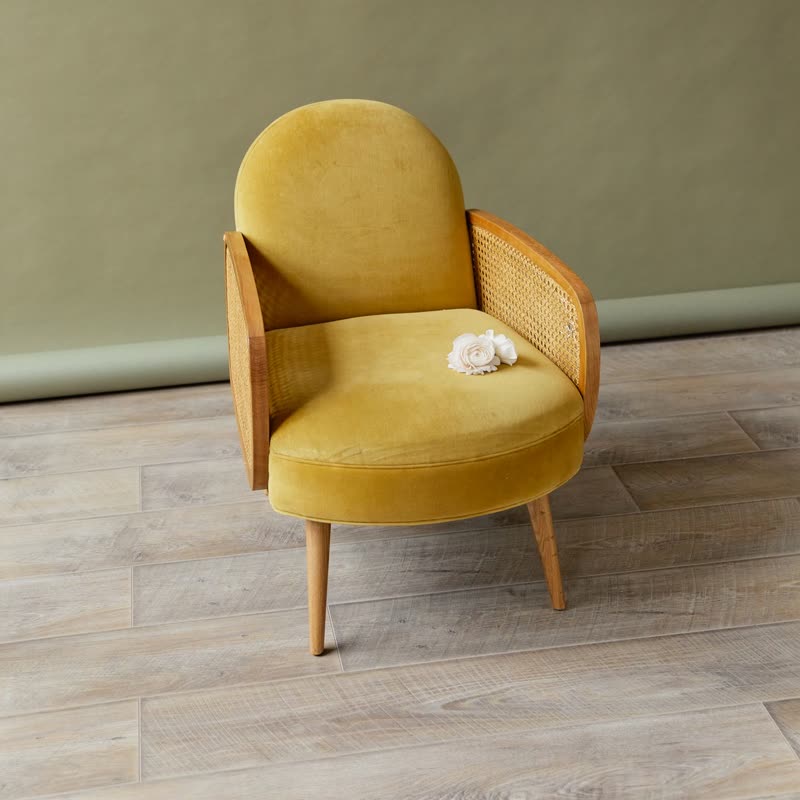
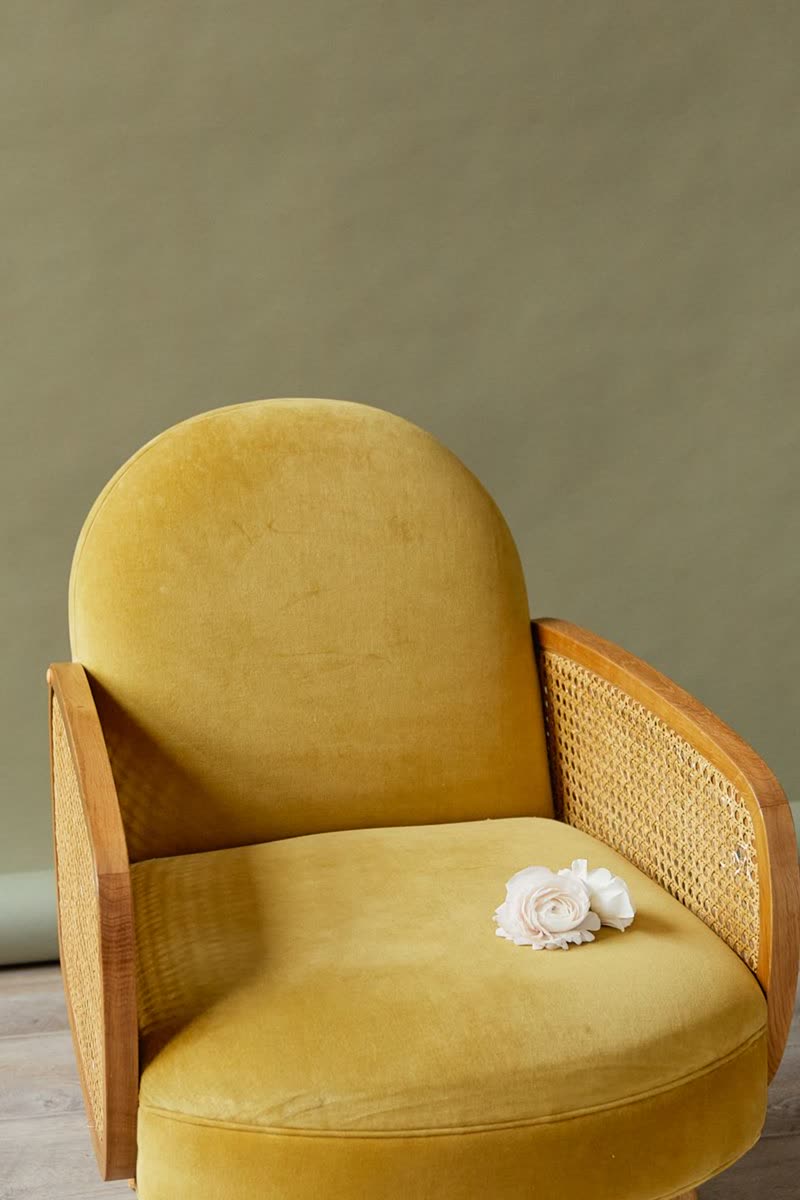
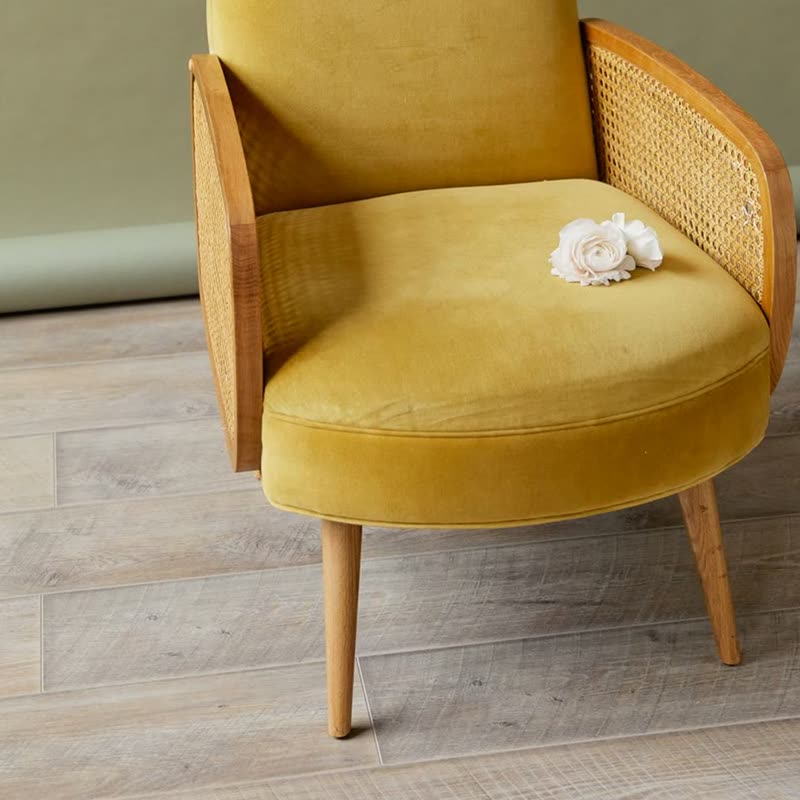
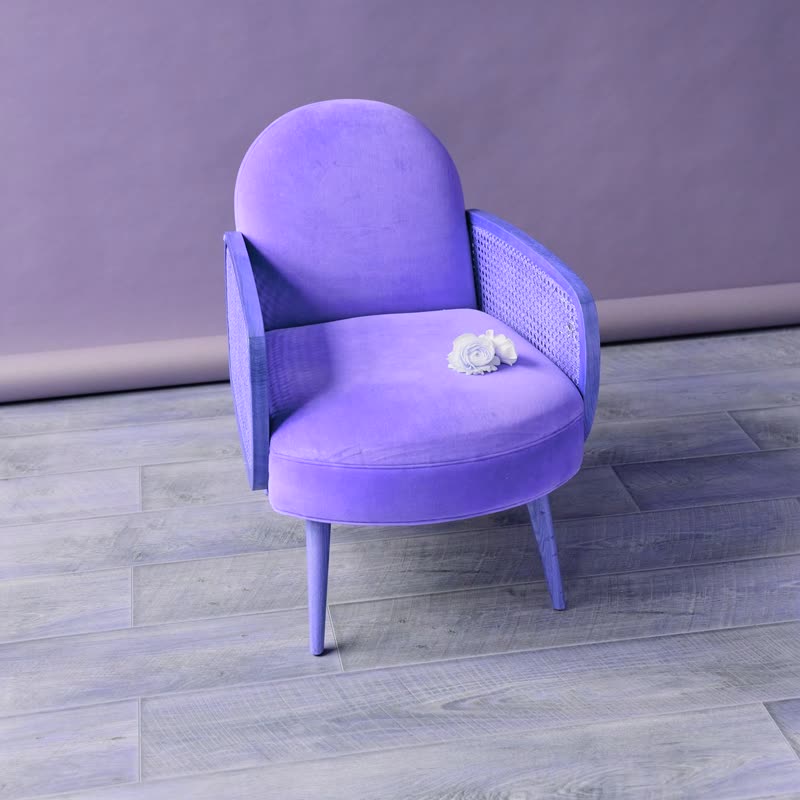
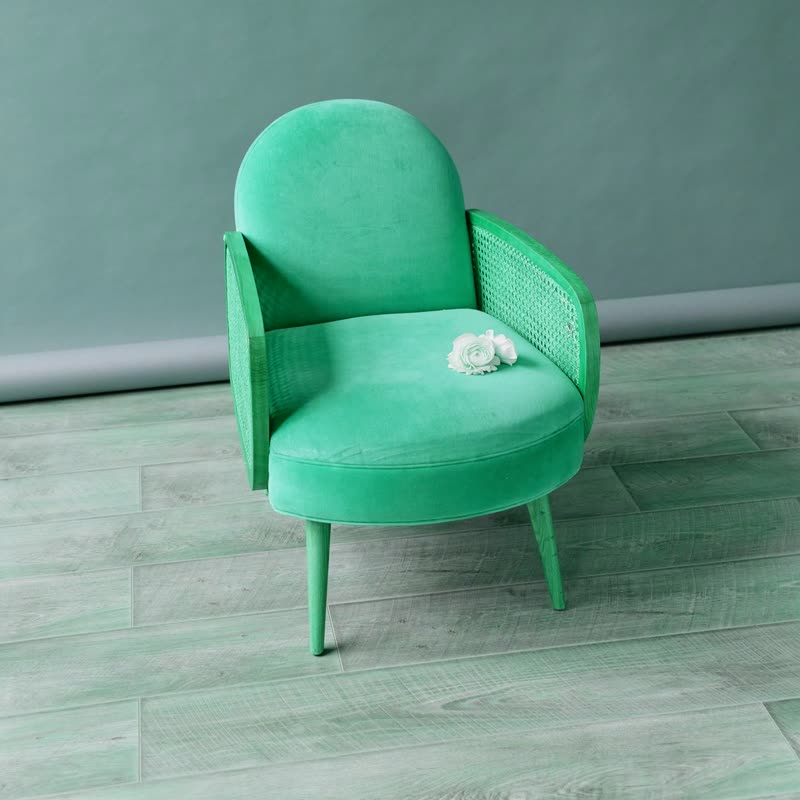
Solid frame, joined by hand. Delivered assembled.
No colour chosen
The swatches come from the product's attributes, and each one leads to the image set on the matching variation. Hovering previews it, and clicking picks it, through the same transition as the image change. On a touch screen, a tap picks. If a variation has no image of its own, there is nothing to change to, so the picture stays put. Good variation images are the whole of this feature.
If what you need is swatches everywhere, including dropdowns replaced on the product page with labels, tooltips, images and size buttons, then a plugin dedicated to swatches will have more options than we do. Ours are colour swatches on cards with a strong picture change. They are not a replacement for a full attribute display system. We compare a few on the alternatives page.
The Product Stage block goes further. It shows the gallery and the choices of one product, and a change of variation updates the picture, the price and the stock line together. You can turn it on for every product page in WooCommerce, Settings, Products.
Set an image on every variation you want a swatch to show. A variation that has the same image as its parent makes a swatch that seems to do nothing. If you have many colours, show the most popular first, because cards do not have room for a dozen dots: the swatches wrap onto another line, which pushes down the price and the button.
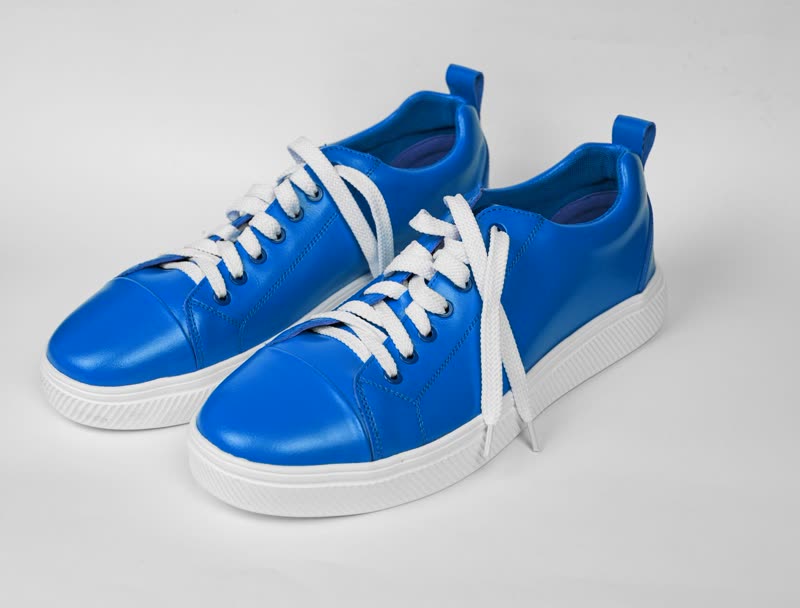
The other colours in our demos are tinted versions of one sample photo, standing in for variation images. Your own photos will look better than our tints.
Yes, on the Morph Card and Product Stage blocks.
A variable product's button goes to its product page. On a Product Stage, the chosen variation goes into the cart.
Sample products throughout. Pro starts at $19 a year.
Get the free plugin