Product Slider BlockFree downloadMenu

Morph Card, a product card that turns into its second picture

The shop-page card, with one difference: the image is a small stack, so pointing at it shows the second photo through a shader. Swatches preview a colour on hover, and a click picks it.

Point at a card, hover a swatch, click one

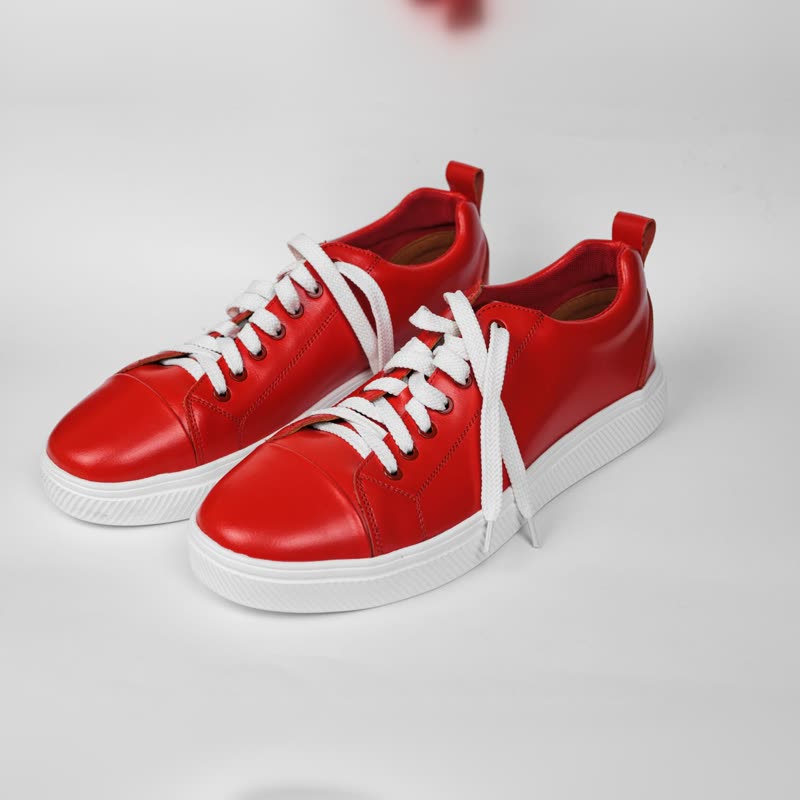
Pair of red leather low-top sneakers with white laces and soles on a light grey background
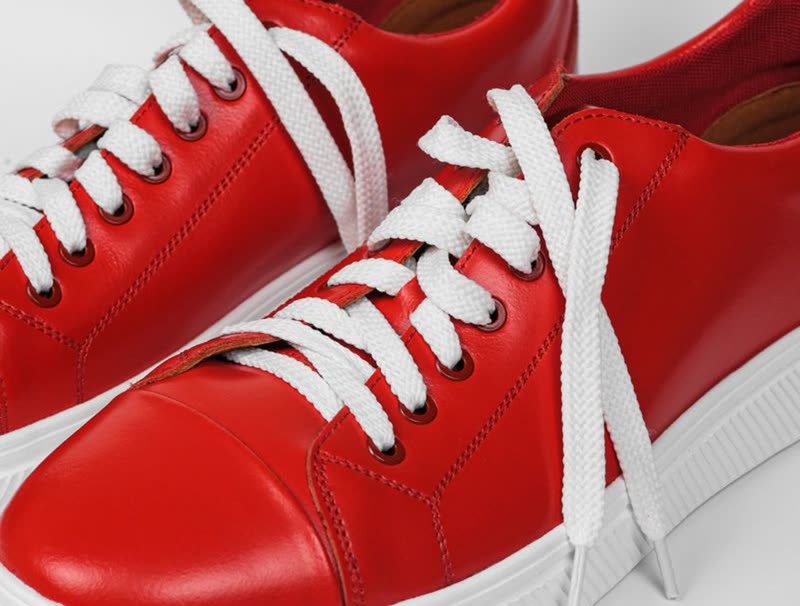
Close-up of the red court low
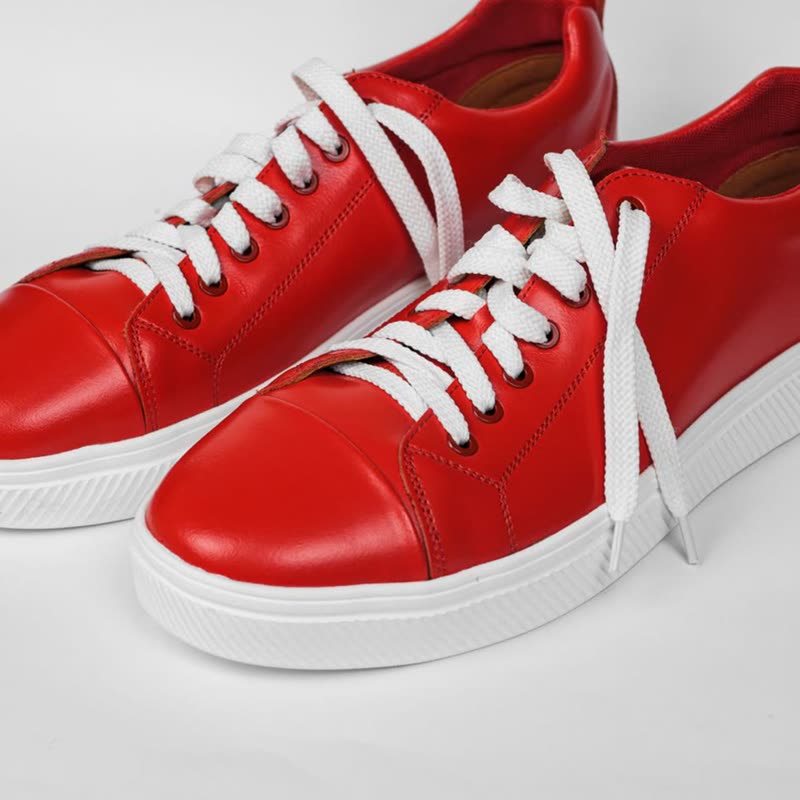
Another detail of the red court low
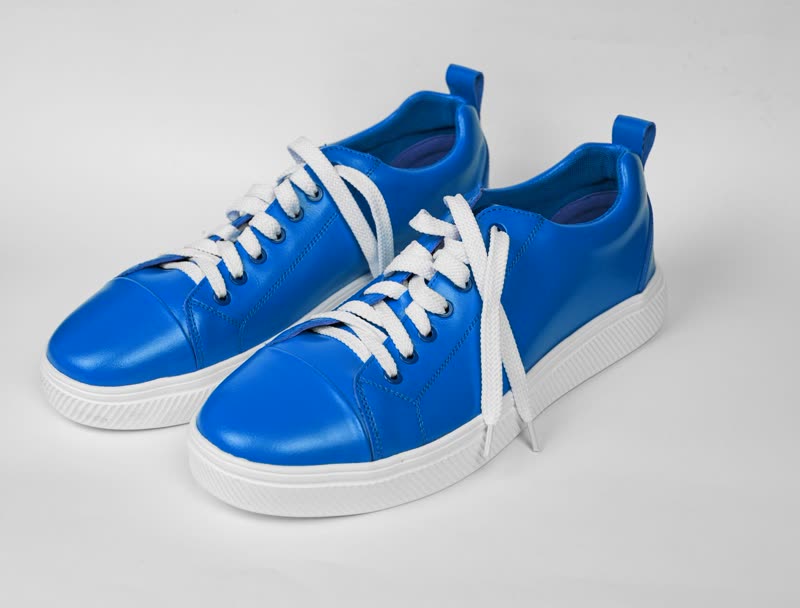
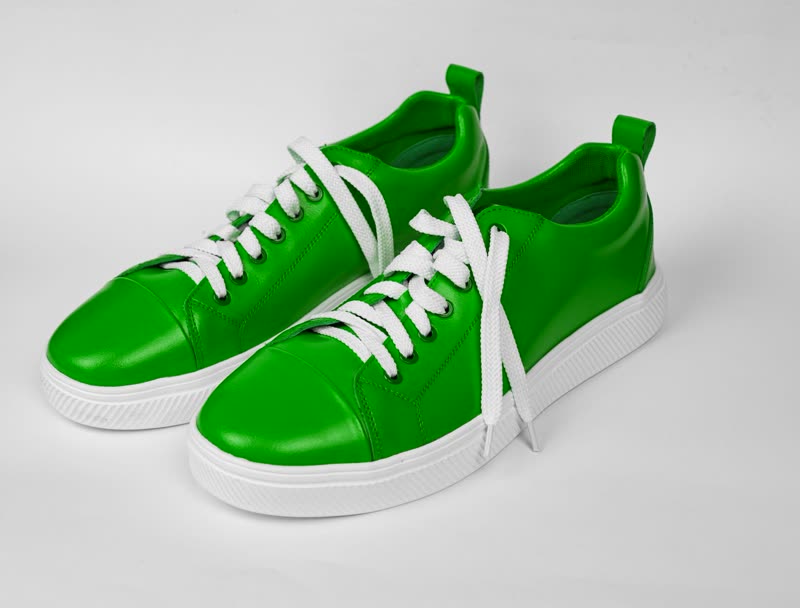
Red court low in blue, a stand-in for a variation image
Red court low in green, a stand-in for a variation image

Soft leather upper, cushioned sole. Comes with a spare set of laces.

Upper
Sample leather
Sole
Sample rubber

Red court low

€129

No colour chosen

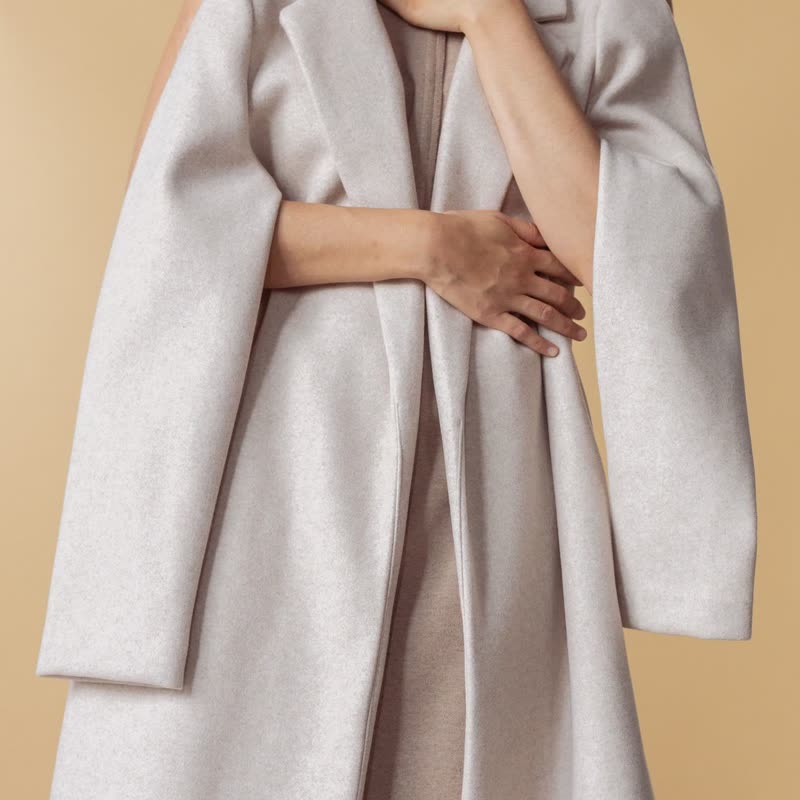
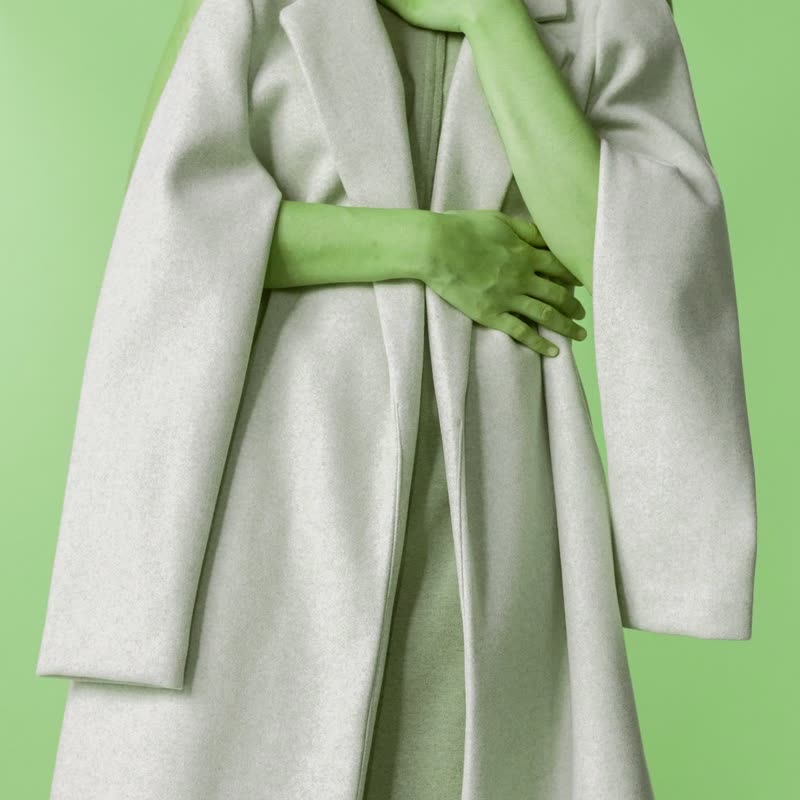
Woman wearing an oat wool coat over her shoulders against a warm sand backdrop
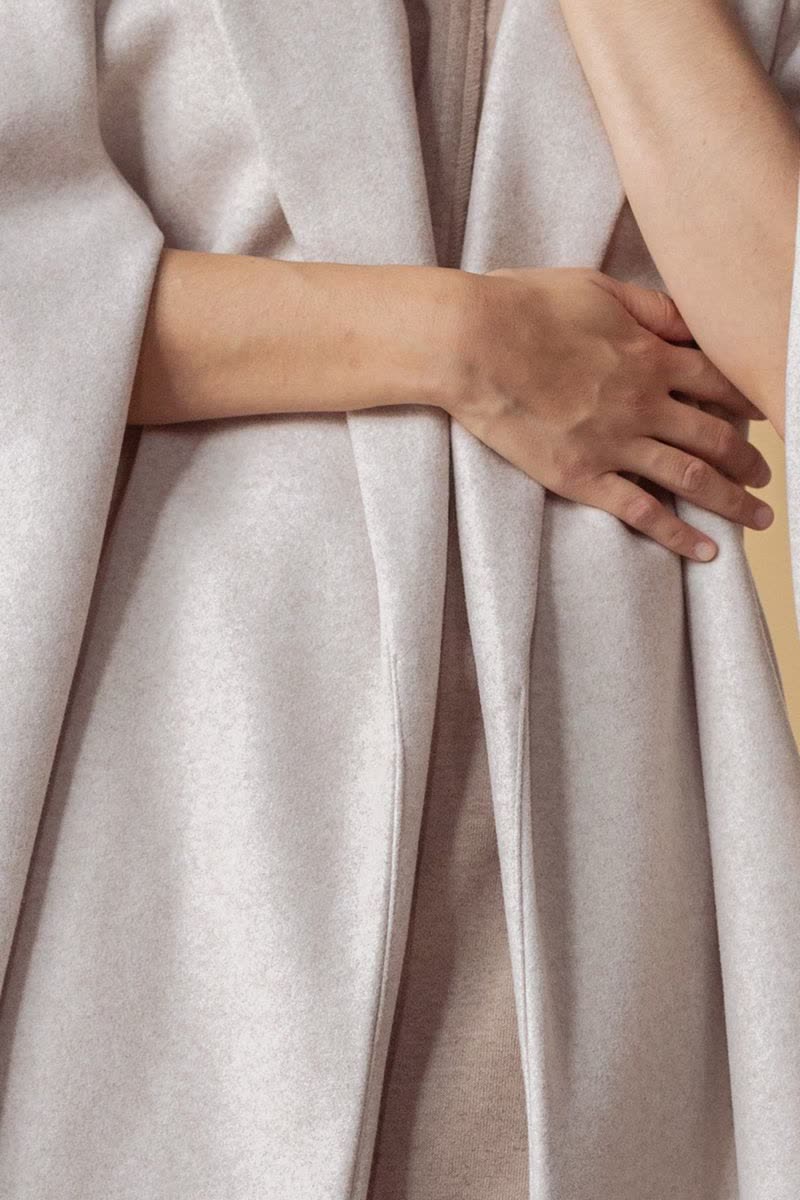
Close-up of the oat wool coat
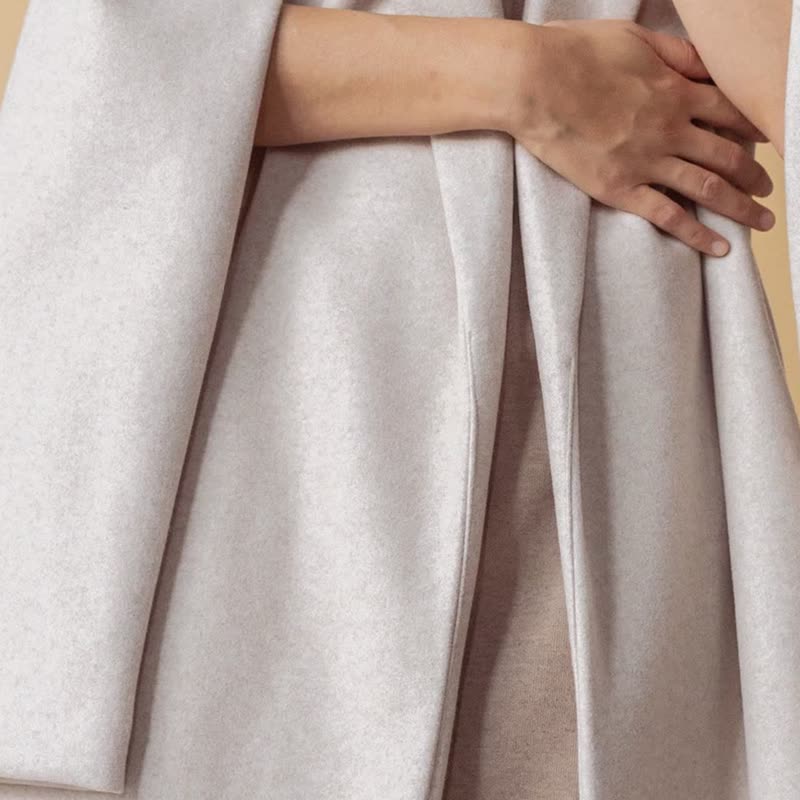
Another detail of the oat wool coat
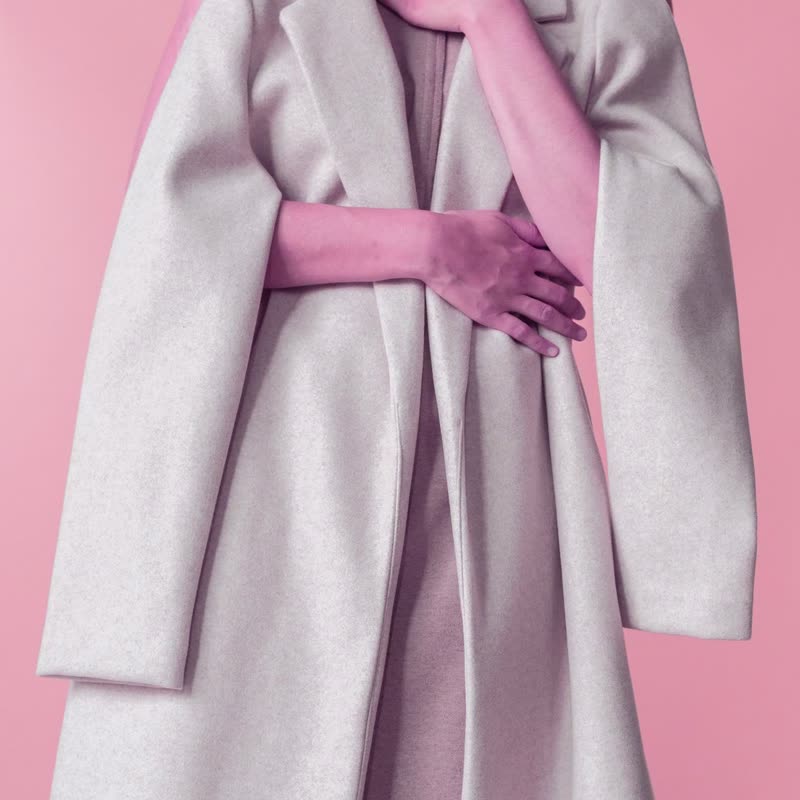
Oat wool coat in violet, a stand-in for a variation image
Oat wool coat in amber, a stand-in for a variation image

Cut for an easy fit, in cloth that holds its shape.

Cut
Sample regular

Oat wool coat

€340

No colour chosen

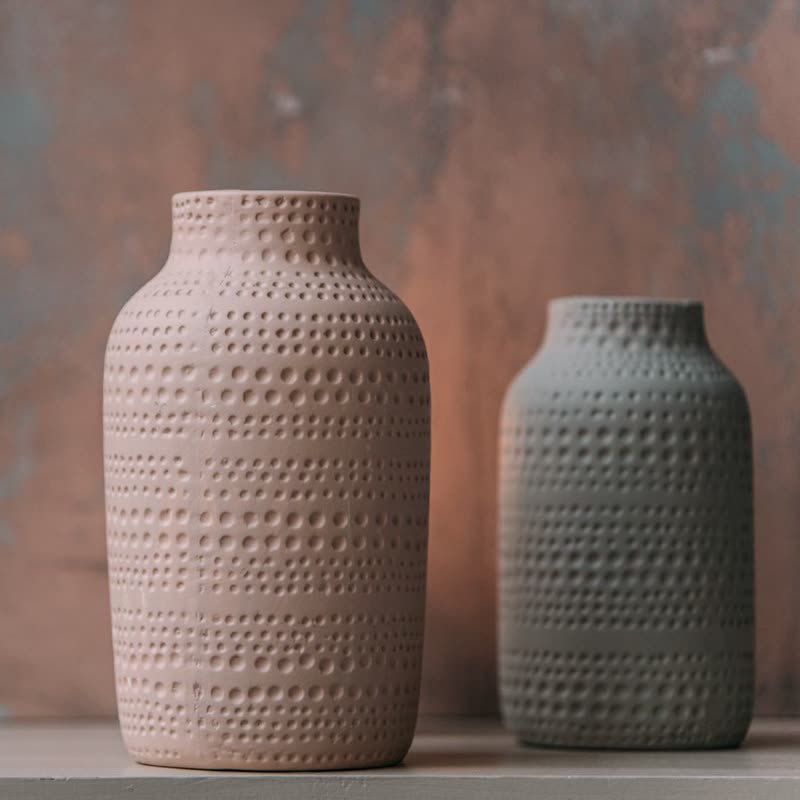
Two textured dimple vases in blush and sage against a weathered backdrop
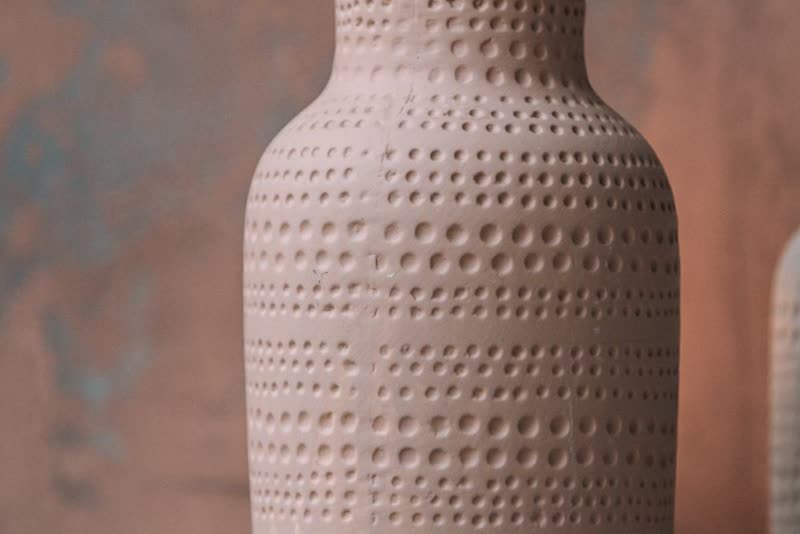
Close-up of the dimple vase pair
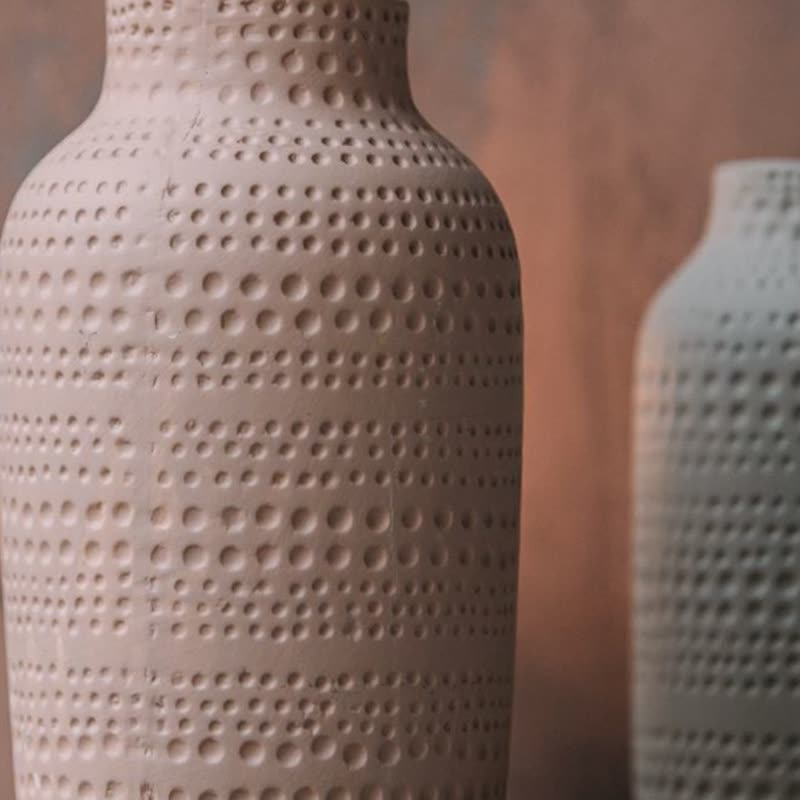
Another detail of the dimple vase pair

Thrown by hand, glazed and fired twice. No two come out quite the same.

Glaze
Sample

Dimple vase pair

€96

What it does

Pointer enters
The picture morphs to the second image and rests there.
Pointer leaves
It goes back to the first image, or to the colour someone chose.
Dots
Always visible, so shoppers can see at rest that there are more photos.
Swatch hover
Previews that colour's image with the same morph.
Swatch click
Chooses the colour. A chosen swatch beats hover: the card holds it until someone clicks it again.
Details panel
Short description and attributes come in on hover and on keyboard focus.
Touch
Swipe through the images. Nothing depends on hover, and a button opens the details.
Scrub (Pro)
Pointer position across the card picks the image directly, for people who want to look at photo 3 right now.

Use it when your shop page sells on looks, and when each product has at least two good photos. With one photo per product there is nothing to morph into, so the plain Product Slider card serves you just as well.

Free

The block is free. Its Pro parts: more transitions, pointer effects. Pro starts at $19 a year.

Set it once, or per block

Everything on this site is a setting, not code. Each block's sidebar has a Pointer panel and a panel for where the name, price and button go. And three storewide switches in WooCommerce, Settings, Products put it on every list and product page, without touching a template.

Try the sidebar on a live card.

Block sidebar, Pointer (Pro)

Effect under the pointer
12 to choose from
Size
0 to 100
Strength
0 to 100

Block sidebar, Name, price and button

Show them
Always, or when pointed at

WooCommerce, Settings, Products

Lists of products
Hover morph on all of them
Product pages
Product Stage in place of the gallery
Transition
Free: fade, distance, ripple, zoom. Pro adds more
Pointer effect (Pro)
One for the whole shop
Turning a switch off puts your theme's own output back.

Questions

Which image shows first?

The product image you set in WooCommerce. The gallery images follow in their order, then the images of the variations.

What happens without WebGL or WebGPU?

gpu slider leaves the drawing to the page: the images fade into each other and everything still works.

Can I use it with variable products only?

No. A simple product with a gallery gets the morph and no swatches. A product with a single image stays still and has no dots.

Does hover do anything on a phone?

No, phones have no hover. Swiping moves between images and tapping a swatch chooses the colour.

See it elsewhere

Transitions that suit it

In a sample shop

Morph Card is in the free plugin.

Get the free plugin