 Product Slider BlockFree downloadMenu
How to show a second product image on hover in WooCommerce
WooCommerce shows one image per product in its lists and has no setting to change that. Here is how to add a second one, and what to think about before you do.
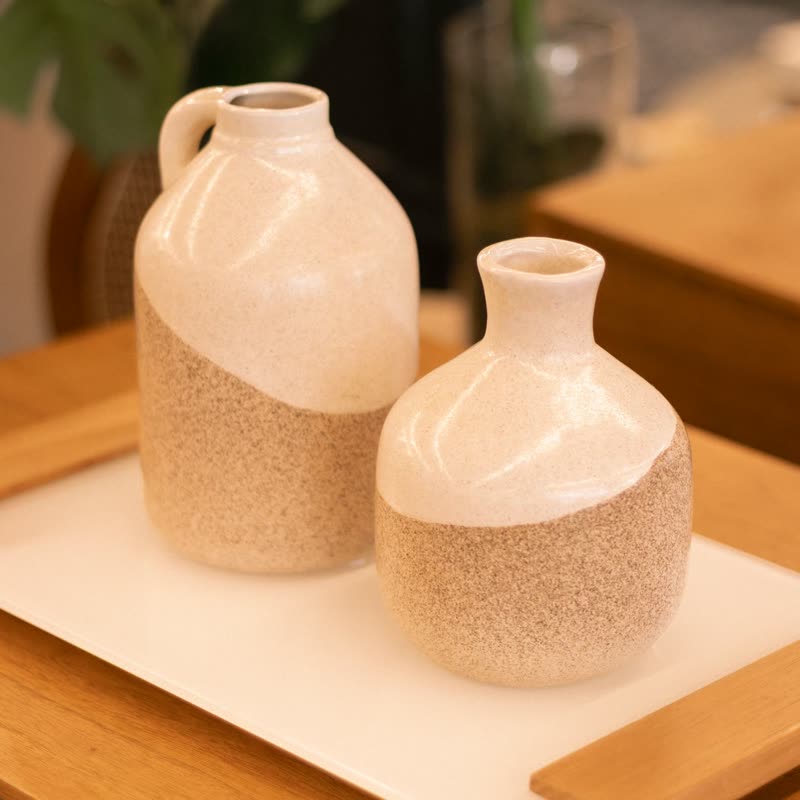
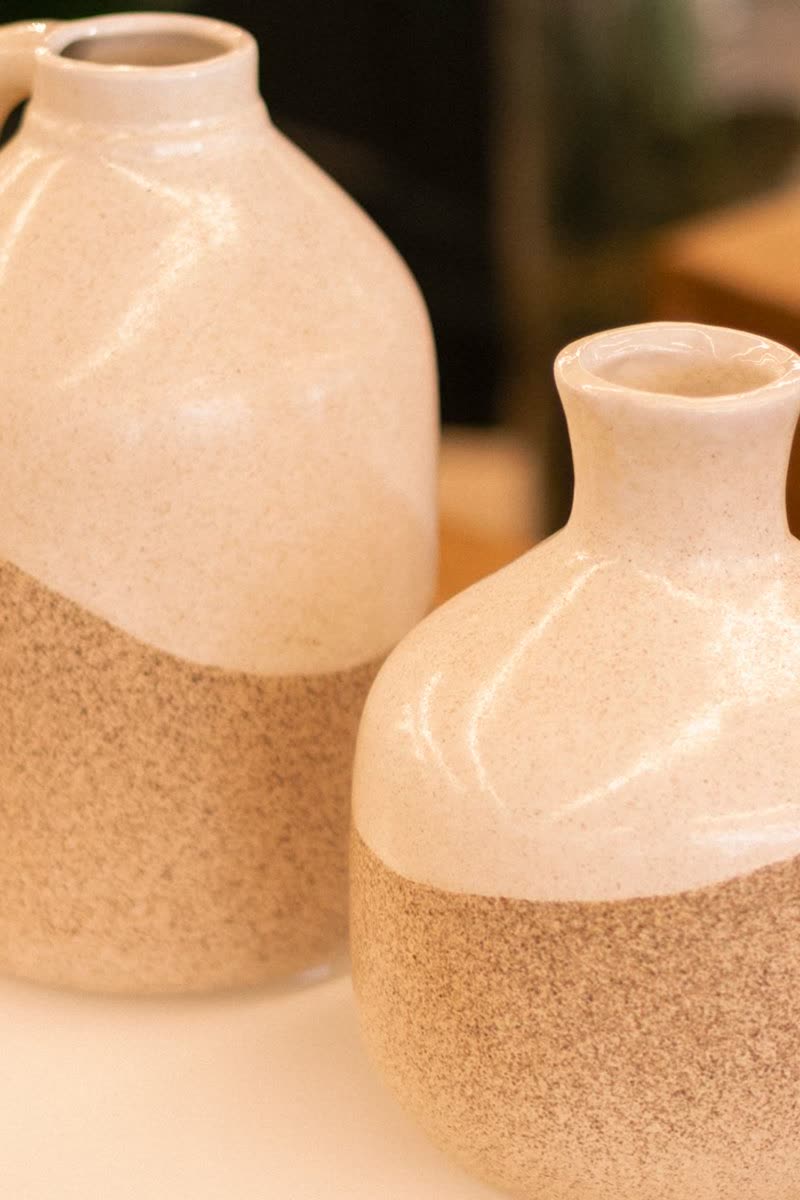
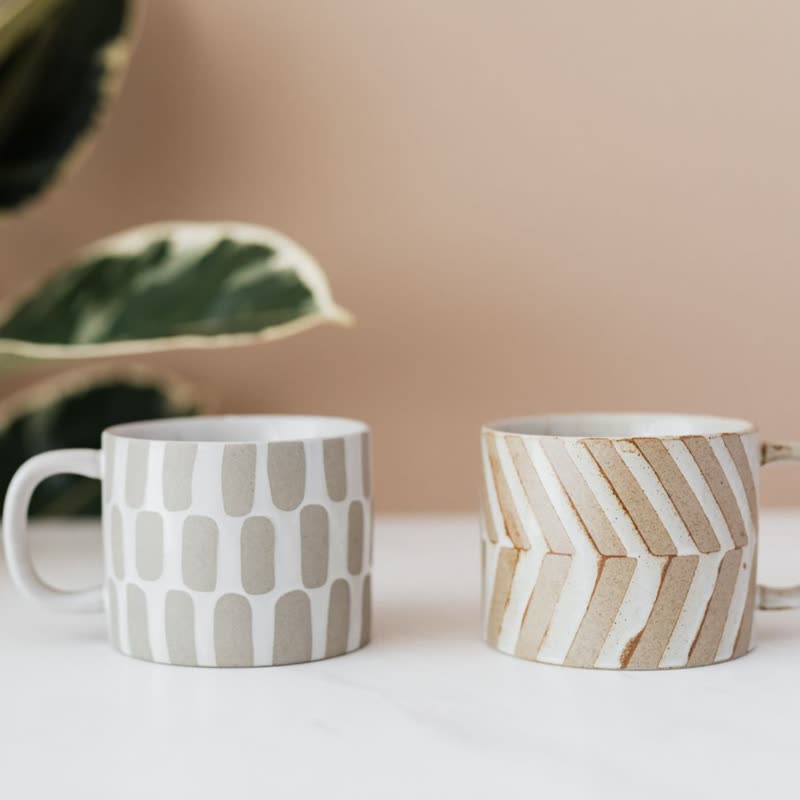
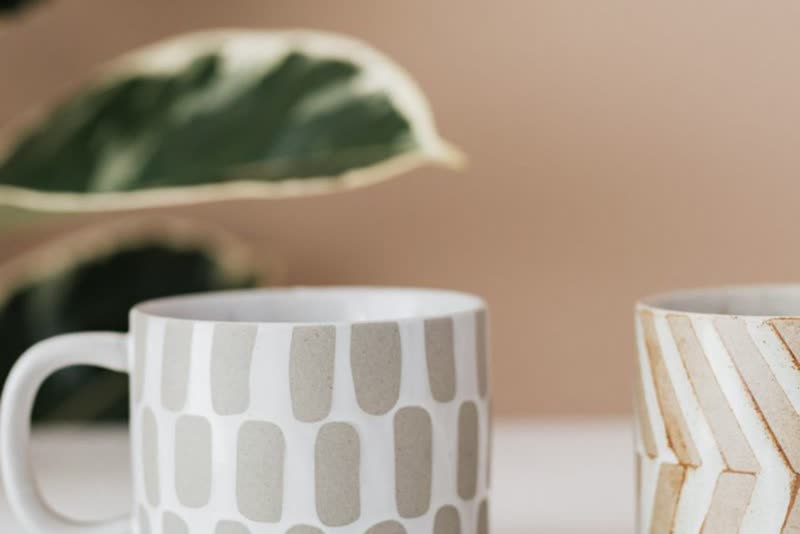
Point at a product and the second picture comes in. Sample products.
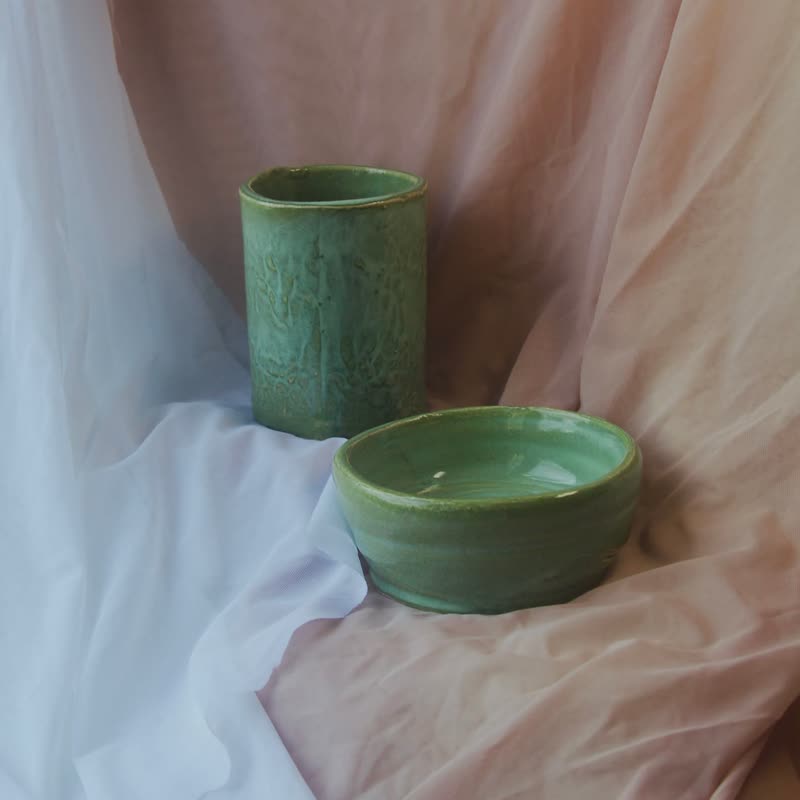
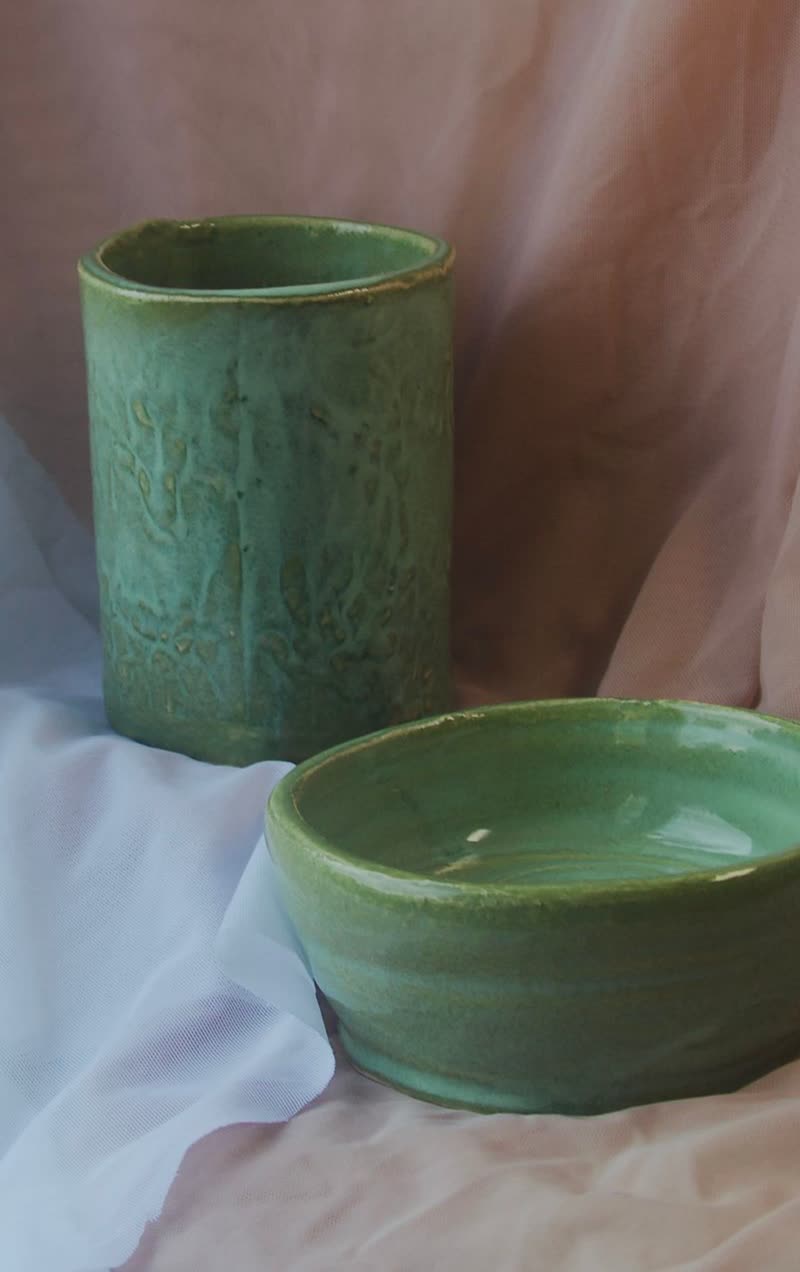



First, check your theme
Many commercial themes have this built in, as an image swap option in the Customizer or theme settings. Look there first. A theme setting is one less thing to maintain, and it was tested with your theme's markup.
The code way
The second image comes from the product gallery. In a child theme, hook into the shop loop and print the first gallery image next to the main one:
add_action( 'woocommerce_before_shop_loop_item_title', function () {
	global $product;
	$ids = $product->get_gallery_image_ids();
	if ( $ids ) {
		echo wp_get_attachment_image( $ids[0], 'woocommerce_thumbnail', false, array( 'class' => 'hover-image' ) );
	}
}, 11 );
Then lay it over the first with CSS, and fade it in on :hover. Your theme's markup decides the exact selectors, so expect to adjust them. Set loading="lazy" on the extra image (WordPress adds it by default) so a long category page does not load twice as many pictures up front.
The plugin way
Several small plugins do only this. If you want more than a swap, our Morph Card morphs to the second image through a shader and rests there, and the storewide switch in WooCommerce, Settings, Products turns this on for every product list, without changing your templates.
Touch screens have no hover
This is the part people forget. On a phone a hover image either never appears, or it appears after the first tap and takes a second tap to open the product, which is worse. Decide what touch visitors get. Dots that show there are more photos, and a swipe to reach them, is a good answer. Showing nothing extra is also fine.
Does it actually help?
We do not have a trustworthy number, and be careful of anyone who does. It costs little to try: measure clicks through to the product page and orders for a few weeks, ideally against a control, as described in the guide on measuring sliders. Which second photo you pick matters too: a different angle or a detail tells people something. The same shot on a model may say more than a close-up, or may not. Check.